![4.png]](https://help.stanweaver.com/hs-fs/hubfs/4.png?height=40&name=4.png)
|
Overview |
After your mailbox is migrated to the AIR Microsoft 365 tenant, IT issues you a temporary password. The first time you sign in you will be asked to register Microsoft Authenticator for MFA, add a phone number as a second method, and replace the temporary password with a permanent one. The whole flow takes about ten minutes.
|
Prerequisites |
- A temporary password provided by IT.
- Access to your mobile device for MFA setup.
- Microsoft Edge installed on your computer.
|
Sign in with Temporary Password |
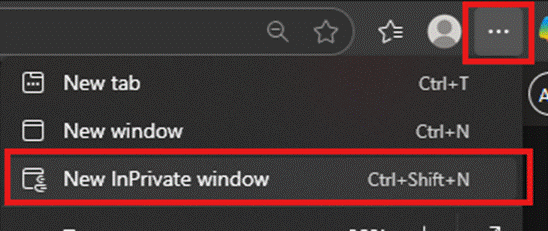
- Open the Microsoft Edge browser.

- In the upper right corner click the three dots.

- Click New InPrivate Window.
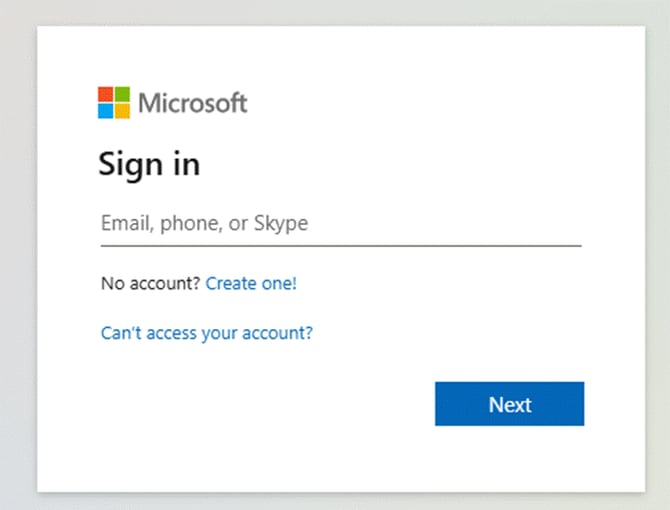
- Go to https://portal.office.com.

- You will see a login screen.
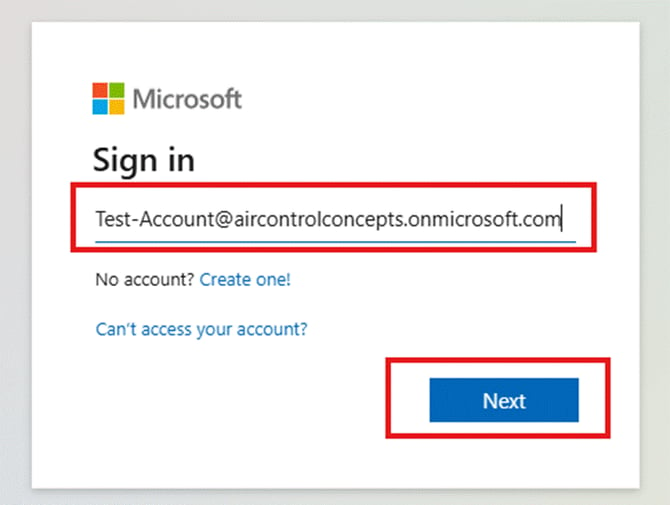
- Enter your email address (for example, username@company.com) and click Next.
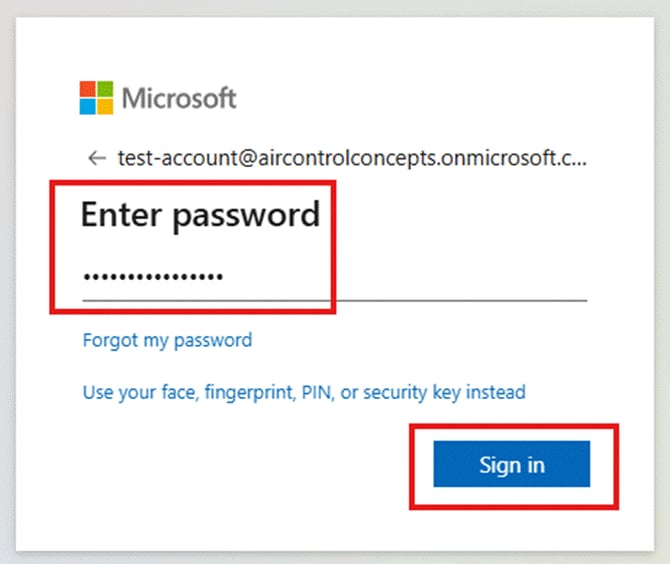
- Enter the temporary password provided by IT.
|
Set Up MFA for Your New Account |
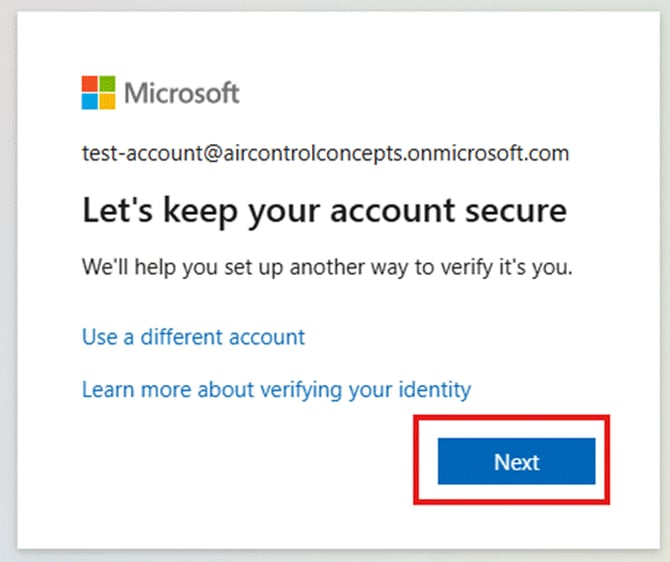
- You will be taken to the Keep your account secure screen. Click Next.
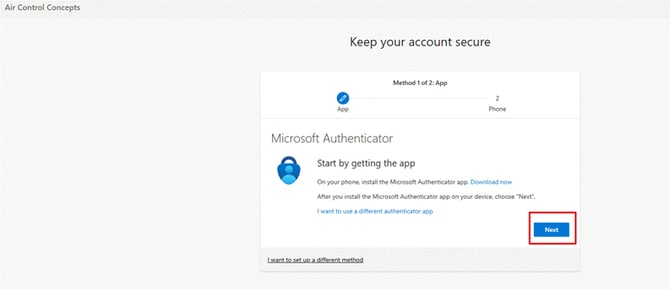
You will need the Microsoft Authenticator app on your phone.
- On your mobile device, download the Microsoft Authenticator app:
- Apple App Store
- Google Play Store
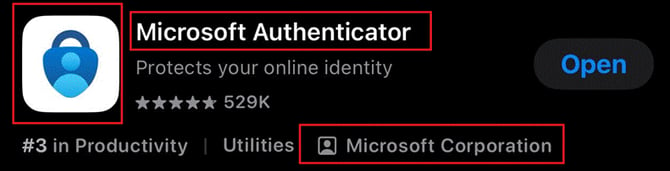
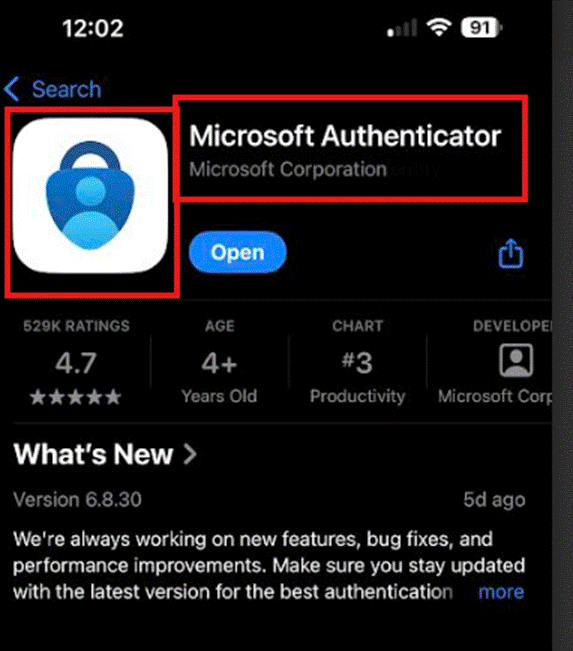
- Once installed, the app should look like this.
|
Note If you already had a Microsoft Authenticator entry from your previous tenant, remove the old one before adding the new AIR account. The next two steps cover this. |
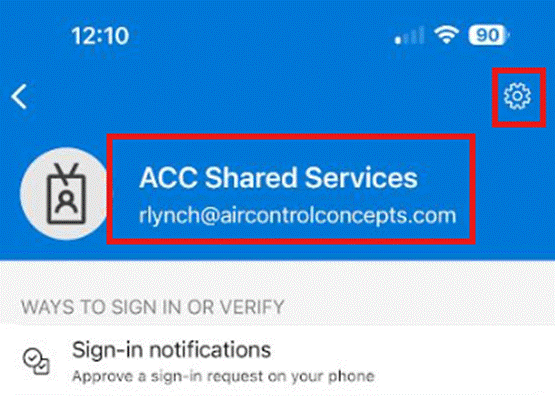
- If you see your old work account in Microsoft Authenticator, find your migrating email address and tap it. Verify the email address, then tap the gear icon in the upper right.
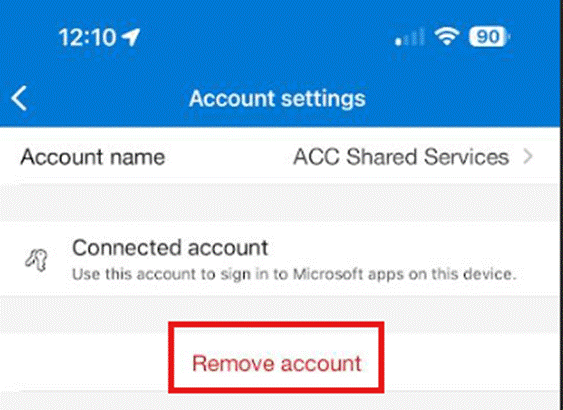
- Tap Remove account.
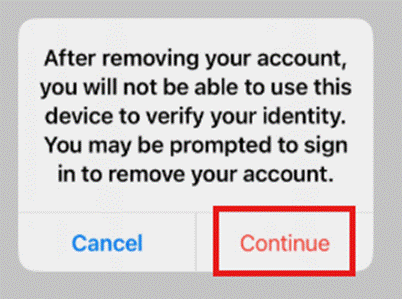
- Tap Continue to confirm the removal.
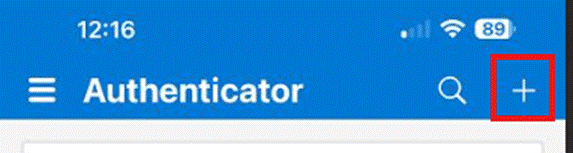
- Back on the main screen of Microsoft Authenticator, tap the plus sign in the upper right corner.
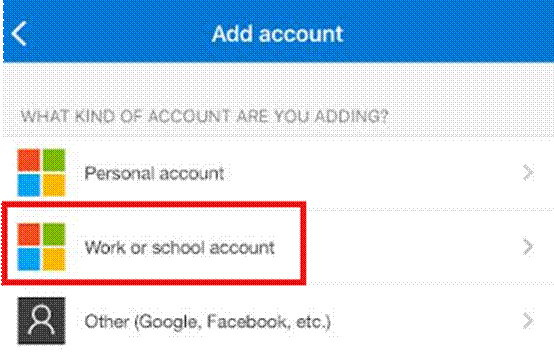
- Pick Work or school account.
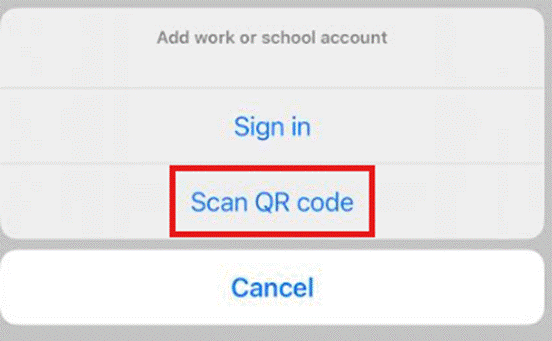
- Tap Scan QR code.
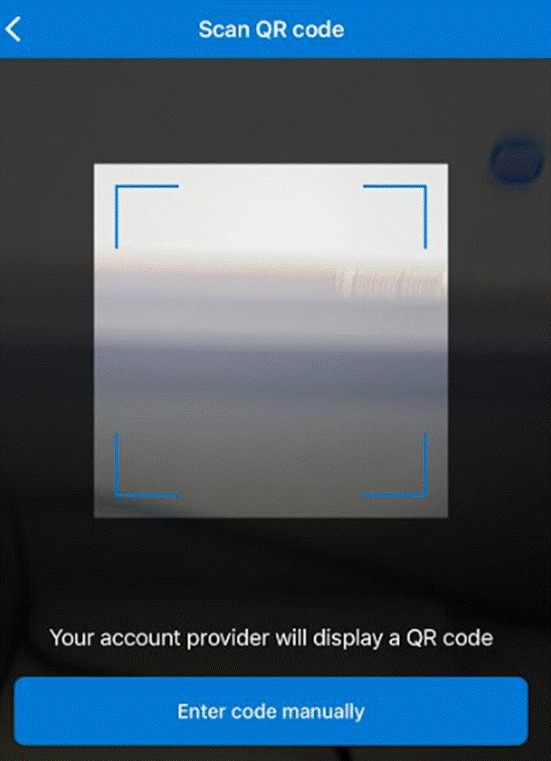
- The app is now ready to scan.
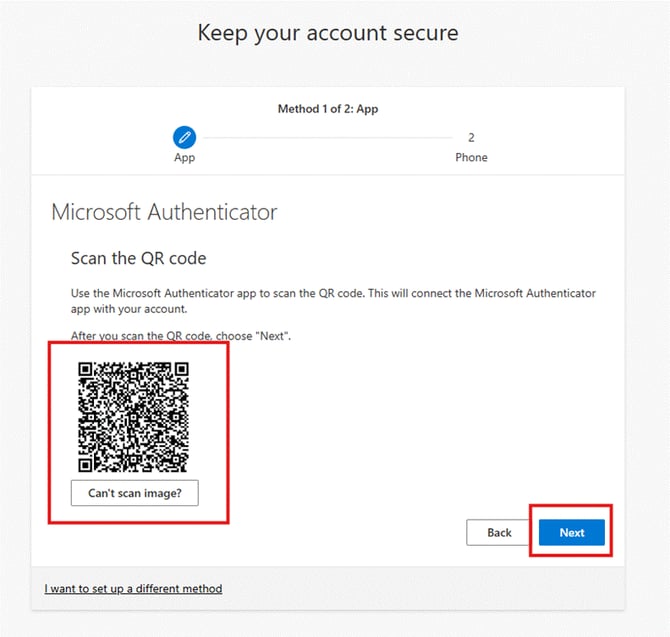
- Switch back to your Edge InPrivate window. Scan the QR code shown there with the Microsoft Authenticator app, then click Next.
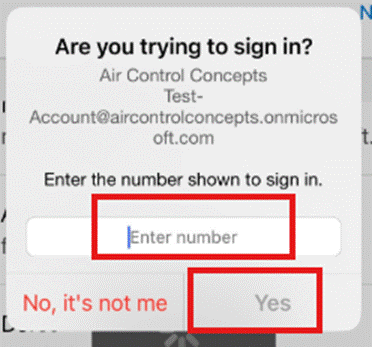
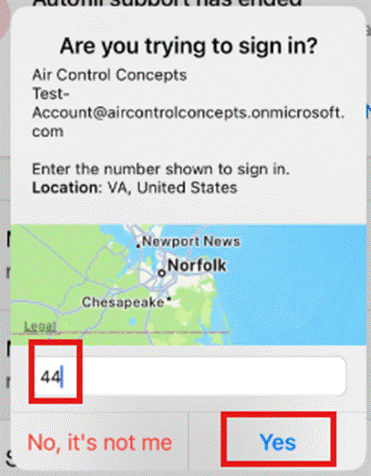
- You will get a pop-up in Microsoft Authenticator with the number shown on your computer screen.
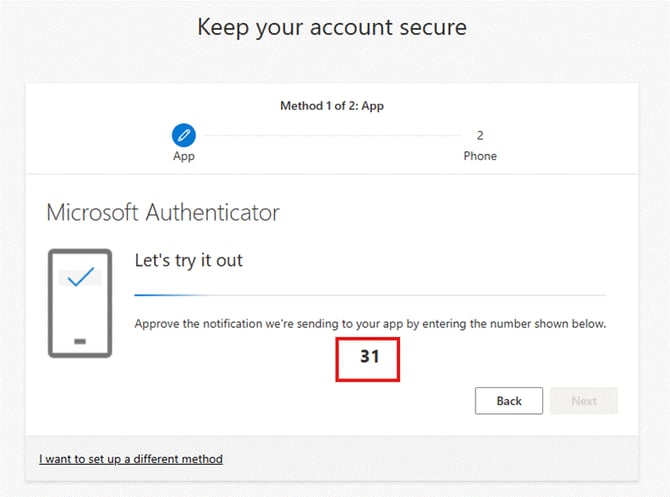
- Type that number on your phone and tap Yes.
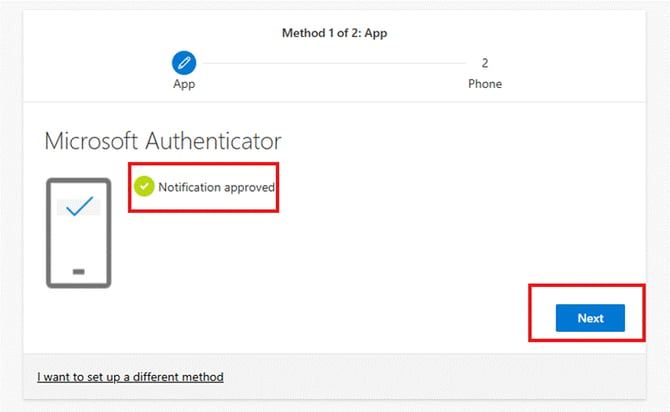
- On your computer you will now see Notification approved.
|
Add a Phone Number as a Second Method |
- Add your phone number for the second MFA method and click Next.
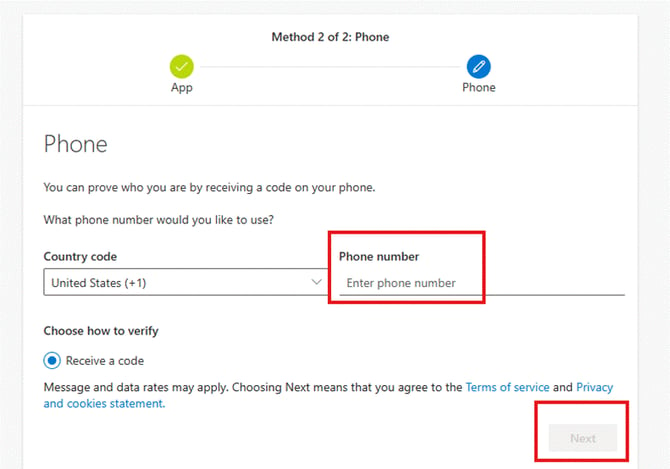
- You will see Success.
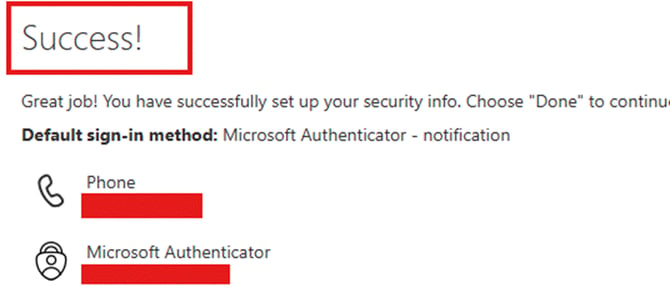
- You will now get a sign-in request in Microsoft Authenticator.
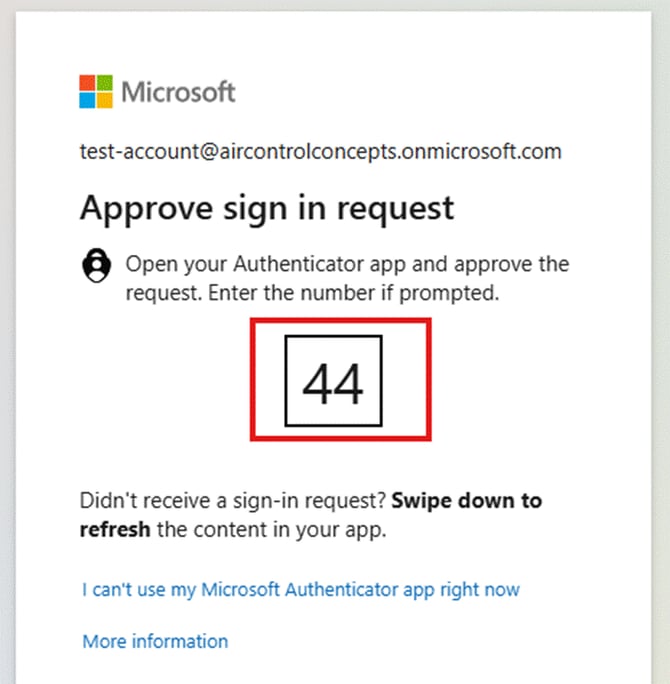
- On your phone, enter the number shown in the pop-up and tap Yes.
|
Reset Your Temporary Password |
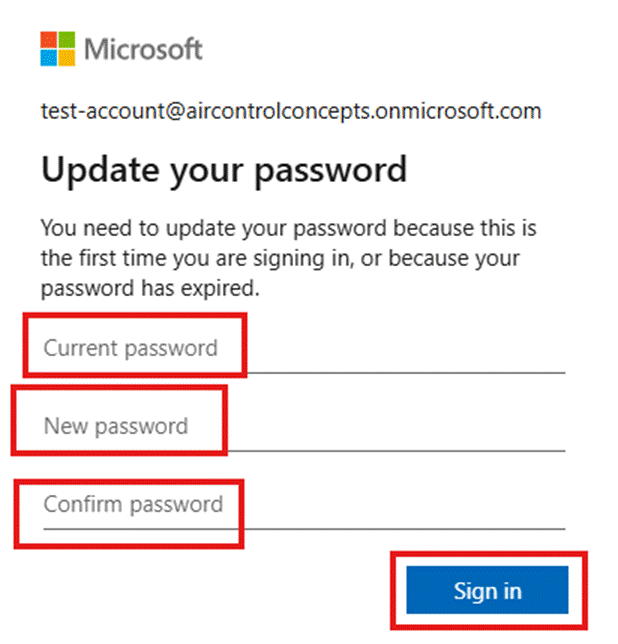
- Enter the temporary password under Current password, create a new password, enter it under New Password, and confirm it. When complete click Sign in.
|
Password requirements At least 12 characters, with a mix of uppercase, lowercase, numbers, and symbols. Avoid words tied to your name, the company name, or the season. |
|
Get to Your Email |
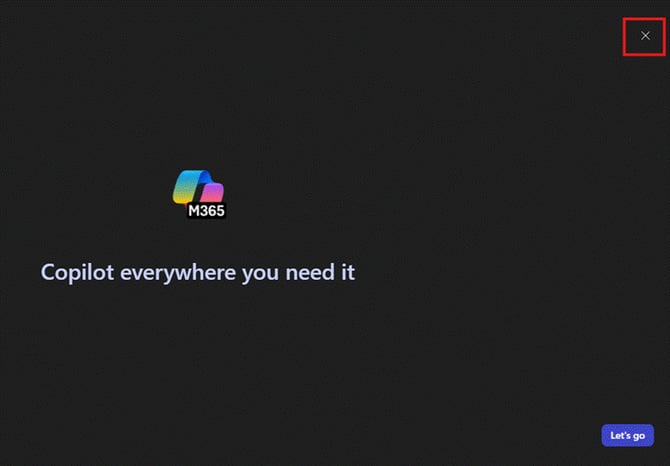
- You will be brought to Copilot. Click the X in the upper right corner to close it.
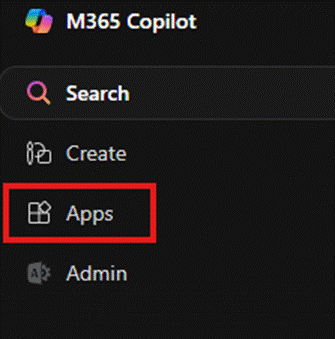
- Access your email via Outlook Online (also called Outlook Web App, or OWA). Click Apps in the upper left corner.
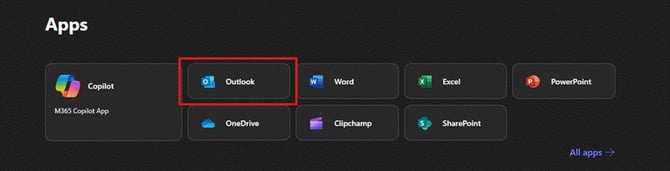
- Once Apps loads, click Outlook.
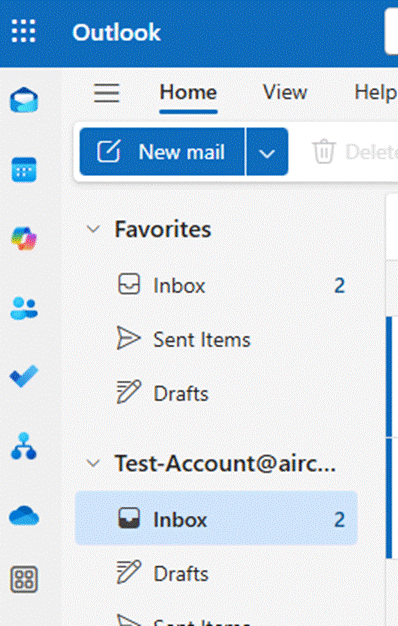
- You now have real-time access to your email.
|
Bookmark for Next Time |
If you would like to bookmark this page, here is the direct link:
|
https://outlook.office.com/mail/ |
|
Support |
If you run into any issues, contact the AIR IT Helpdesk at support@aircontrolconcepts.com or call (757) 317-9090.
|
Version |
Date |
Notes |
|
1.0 |
2026-05-22 |
Migrated to the AIR KB template. Content preserved from the legacy article. Screenshots reflowed. |
|
1.1 |
2026-05-22 |
Per-image native sizing applied so small source images are no longer upscaled and blurred. |
Questions? Contact the AIR IT Help Desk: support@aircontrolconcepts.com