![4.png]](https://help.stanweaver.com/hs-fs/hubfs/4.png?height=40&name=4.png)
|
Overview |
OneDrive's Files On Demand feature keeps your files in the cloud and downloads them only when you open them. That is great for saving disk space, but it is a problem during a tenant migration. Files that are not yet downloaded locally can fail to copy across to the new tenant cleanly.
Before your migration date, turn off Files On Demand and let OneDrive download every file to your computer. That way the files are physically present and the migration tool can verify them.
|
Before You Start |
- Confirm you have enough free disk space. If your OneDrive holds 100 GB, you need at least 100 GB free on the drive where OneDrive syncs.
- Plan some time. Downloading every file can take from 30 minutes to several hours depending on file count and connection speed.
- Plug into power. Do not let your laptop sleep mid-download.
|
Step 1: Open OneDrive Settings |
Click the OneDrive blue cloud icon in the system tray (lower-right corner of the taskbar). If you do not see it, click the up-arrow in the system tray to expand the hidden icons.

|
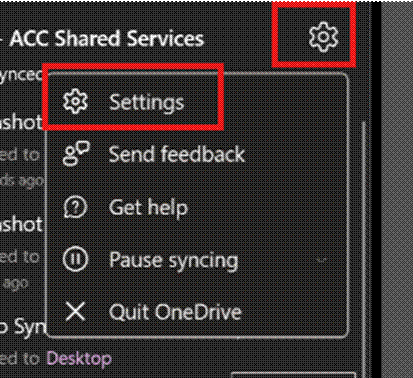
Step 2: Open the Gear Menu |
In the OneDrive panel, click the gear icon in the upper-right corner, then click Settings.
|
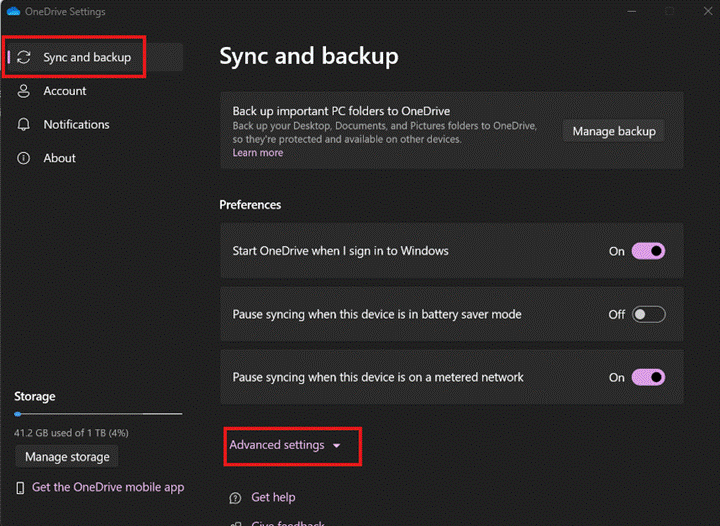
Step 3: Open Advanced Settings |
In the Settings tab, scroll down to the Files On-Demand section and click Advanced settings.
|
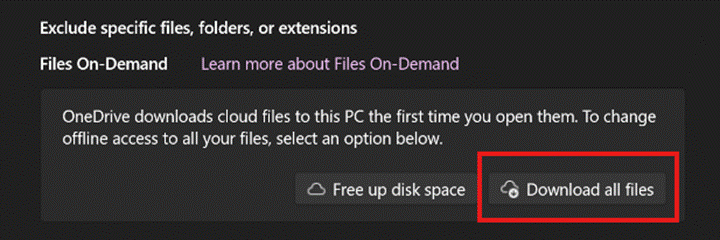
Step 4: Download All Files |
Under Files On-Demand, click Download all files.
|
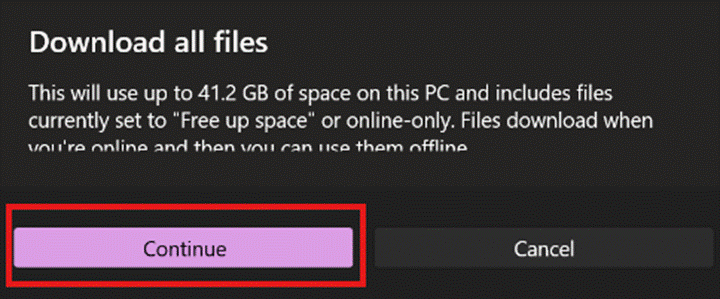
Step 5: Confirm the Download |
A confirmation dialog appears warning that this will use disk space. Click Continue. OneDrive starts downloading every file.
|
Step 6: Wait for the Download to Complete |
Click the cloud icon to watch progress. When OneDrive shows "Your files are up to date" and you no longer see any cloud-only icons next to files in File Explorer, you are done.
- In File Explorer, a green checkmark on every file means it is fully downloaded.
- A blue cloud icon means it is still online-only and not yet downloaded.
- If you see any blue clouds when the download finishes, right-click that file or folder and choose Always keep on this device to pull it down explicitly.
|
After the Migration |
Once you are settled on the new AIR tenant and your new OneDrive is signed in and synced, you can re-enable Files On Demand if you want to save disk space. Repeat steps 1 to 3, then under Files On-Demand toggle the setting back on. OneDrive will return existing files to the cloud as it sees fit.
|
Version |
Date |
Notes |
|
1.0 |
2026-05-26 |
Initial publication. Rebuild of the legacy OneDrive Files On Demand Guide. |
Questions? Contact the AIR IT Help Desk: support@aircontrolconcepts.com