![4.png]](https://help.stanweaver.com/hs-fs/hubfs/4.png?height=40&name=4.png)
Backing Up Your Browser Data Before Migration
AIR Knowledge Base | Microsoft 365 | Migration | Browser Backup
How to back up bookmarks, saved passwords, and browser settings in Microsoft Edge, Google Chrome, and Mozilla Firefox before your email migration.
|
Overview |
Browsers that sync to your work account (Edge in particular) lose access to their synced bookmarks, passwords, and settings when your account is migrated to the new AIR tenant. To avoid losing anything, back up locally first or switch the browser to sync with a personal account that survives the move.
This guide covers Microsoft Edge, Google Chrome, and Mozilla Firefox. Do this on every device you use before the cutover date.
|
Microsoft Edge: Export Favorites |
If you do not want to sync your bookmarks to the cloud but still want them accessible after migration, export them to a file.
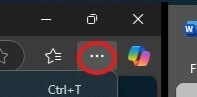
- In Edge, click the three dots in the upper-right corner.
- Open Settings.

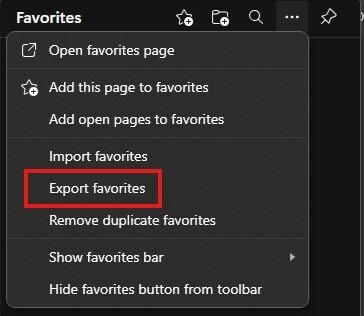
- Navigate to Favorites, click the three dots next to Favorites, and choose Export favorites.

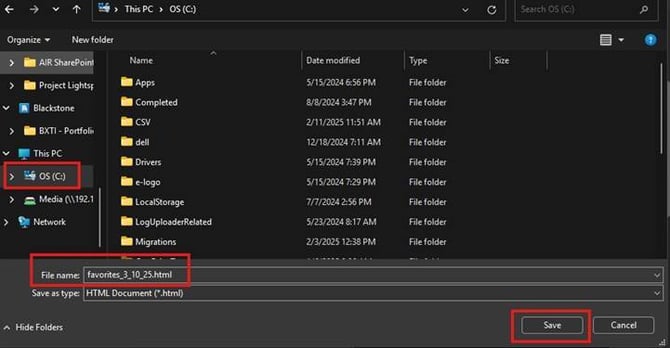
- Choose the C: drive as the save location, give the file a name you will remember (something like Edge-Favorites-2026-05.html), and click Save.
|
Microsoft Edge: Export Saved Passwords |
|
Security note Exported passwords are saved in plain text. Move the file to an encrypted location (BitLocker drive, encrypted USB) or import it into a password manager immediately, then delete the exported file. |
- In Edge, open Settings.
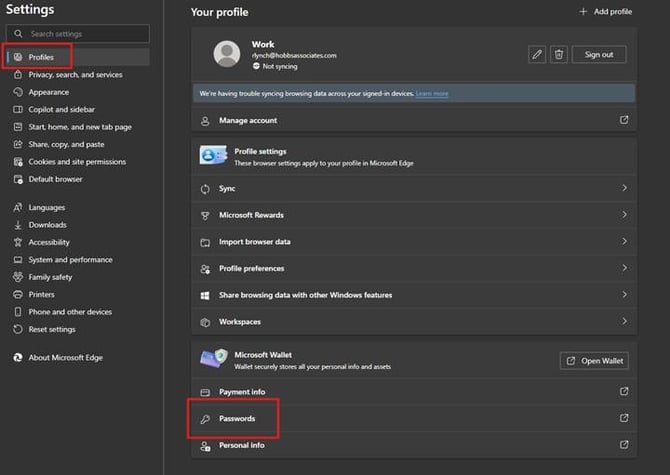
- Navigate to Profiles > Passwords.

- Click the three dots next to Saved passwords and select Export passwords. Edge prompts you to confirm with your Windows credentials.
- Choose a save location on C: and click Save.

|
Microsoft Edge: Switch to Personal Account Sync |
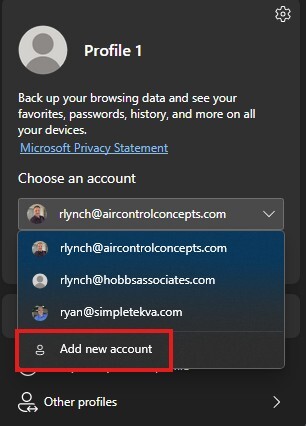
If you would rather keep using Edge sync after the migration, sign in to Edge with a personal Microsoft account (an outlook.com or hotmail.com address) instead of your work account. The personal account survives the tenant move.
- Click the profile image in the upper-left of Edge.
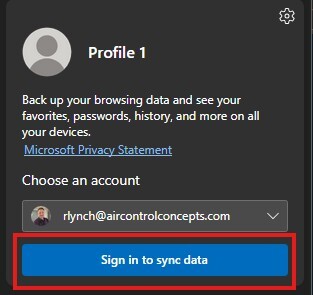
- Choose Add new account and sign in with a personal Microsoft account.
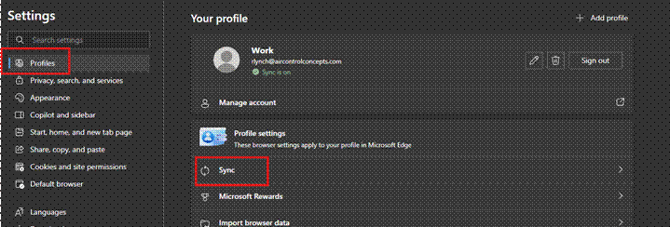
- If prompted, enable sync. Confirm that bookmarks, passwords, history, and settings are all toggled on.
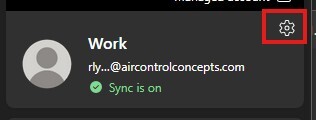
- If sync is already enabled, click Re-Sync to refresh.
|
Google Chrome: Turn On Sync |
Chrome sync uses your Google account, which is unaffected by the AIR tenant migration. As long as sync is on, your bookmarks, passwords, and extensions follow you to any device.
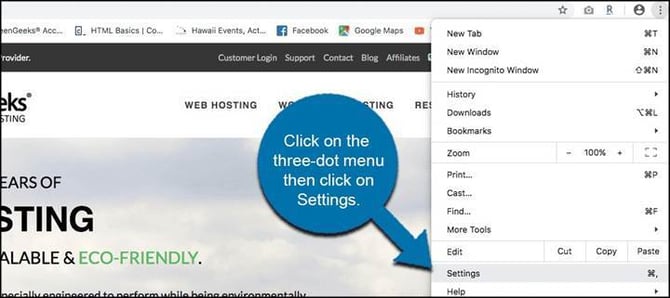
- Open Chrome and click the three-dot menu next to the address bar.
- Click Settings.
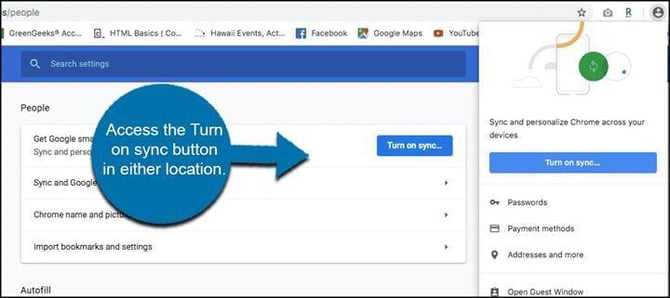
- Click Turn on sync at the top of the Settings page.
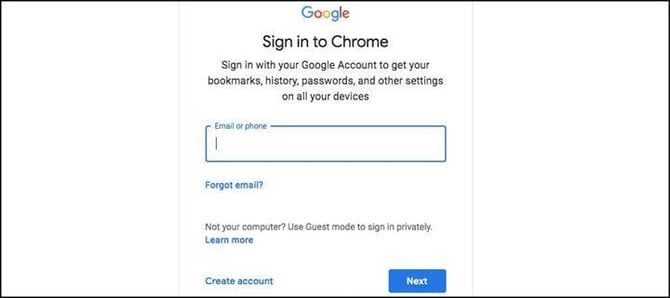
- Sign in to your Google account if you are not already signed in.
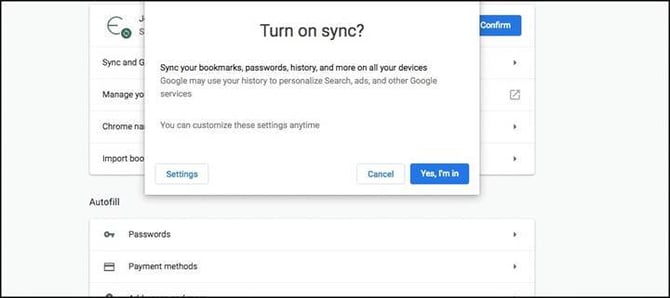
- When the Turn on sync popup appears, click Settings to choose what to sync.
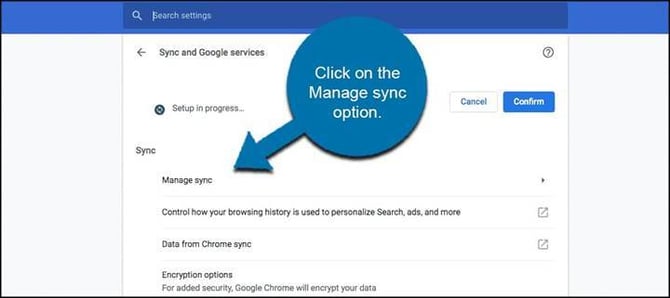
- Click Manage sync.
- Toggle Sync everything on (or pick specific categories).
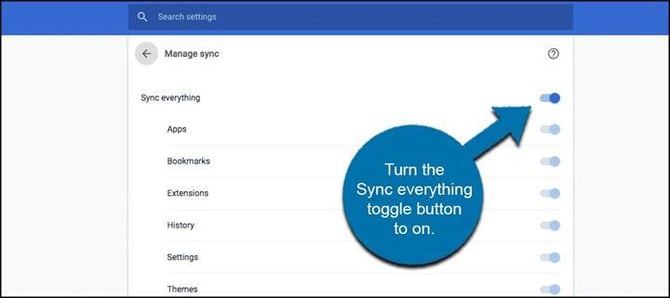
Your Chrome data is now backed up to your Google account. After the migration, sign in to Chrome on your new profile with the same Google account and your settings will restore automatically.
|
Mozilla Firefox: Turn On Sync |
Firefox Sync uses a Mozilla account, which is independent of the AIR tenant. It will keep your bookmarks, passwords, history, open tabs, and settings across devices.
- Open Firefox.
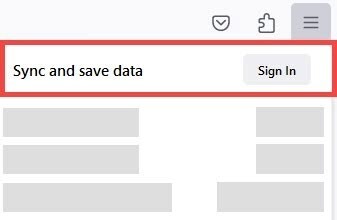
- Click the menu button (three lines, upper-right) and click Sign In next to Sync and save data.

- Sign in with your existing Mozilla account, or create one if you do not have one yet.
- If you are already signed in, click Sync Now to refresh.
|
Tips and Notes |
- Do the browser backup on every device you use, not just your work laptop.
- If you have extensions or web apps with their own logins (Grammarly, password managers, VPN clients), make sure those have their own sign-ins documented.
- Saved passwords exported from Edge or Chrome can be imported into Bitwarden, 1Password, or another password manager. This is the safest place for them after migration.
- After the migration, you can delete any exported password files from your computer once the import is confirmed.
|
Version |
Date |
Notes |
|
1.0 |
2026-05-26 |
Initial publication. Consolidates the legacy Chrome, Edge, and Firefox backup guides into a single article. |
Questions? Contact the AIR IT Help Desk: support@aircontrolconcepts.com